The domain tab
This page explains how to expose a stack to the web, or how to expose a raw TCP port. You will need at least one deployed stack that publishes a port.
If you haven't deployed a stack yet, follow the quickstart.
How to expose a port in a Docker Compose file
If you already know how to do this, jump to Expose a port on a DNS domain.
As explained in the official Docker documentation, you publish a port by declaring it in your docker-compose.yml file.
Here is a quick example that exposes port 80 of an nginx container:
Code
If you want the container port to differ from the host port, the Compose file looks like this:
Code
Deploy the expose to a DNS domain
This example uses the free
*.composerun.livedomains. If you own a domain, you can register it on compose_run and publish your app under your own domain name instead.
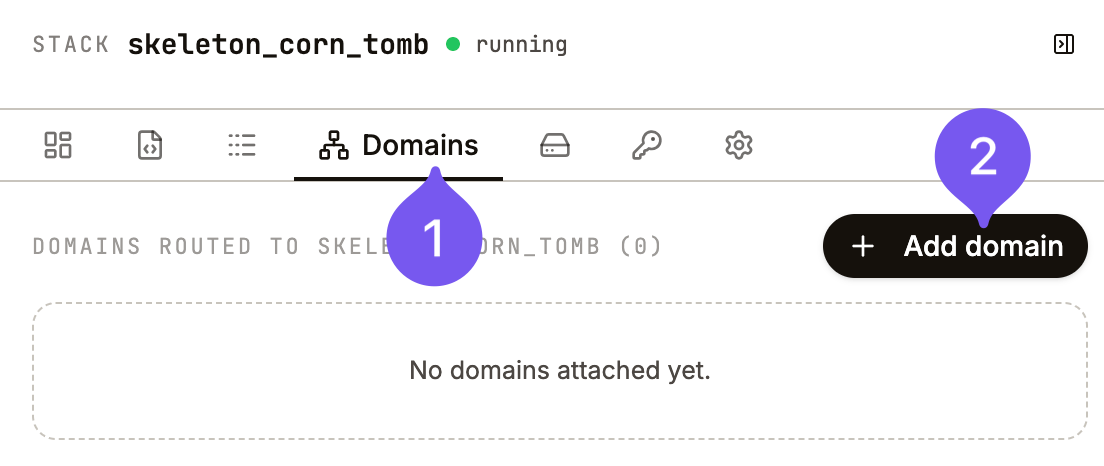
In your stack playground, open the domain tab in the inspector (1), then click the "Add domain" button (2).
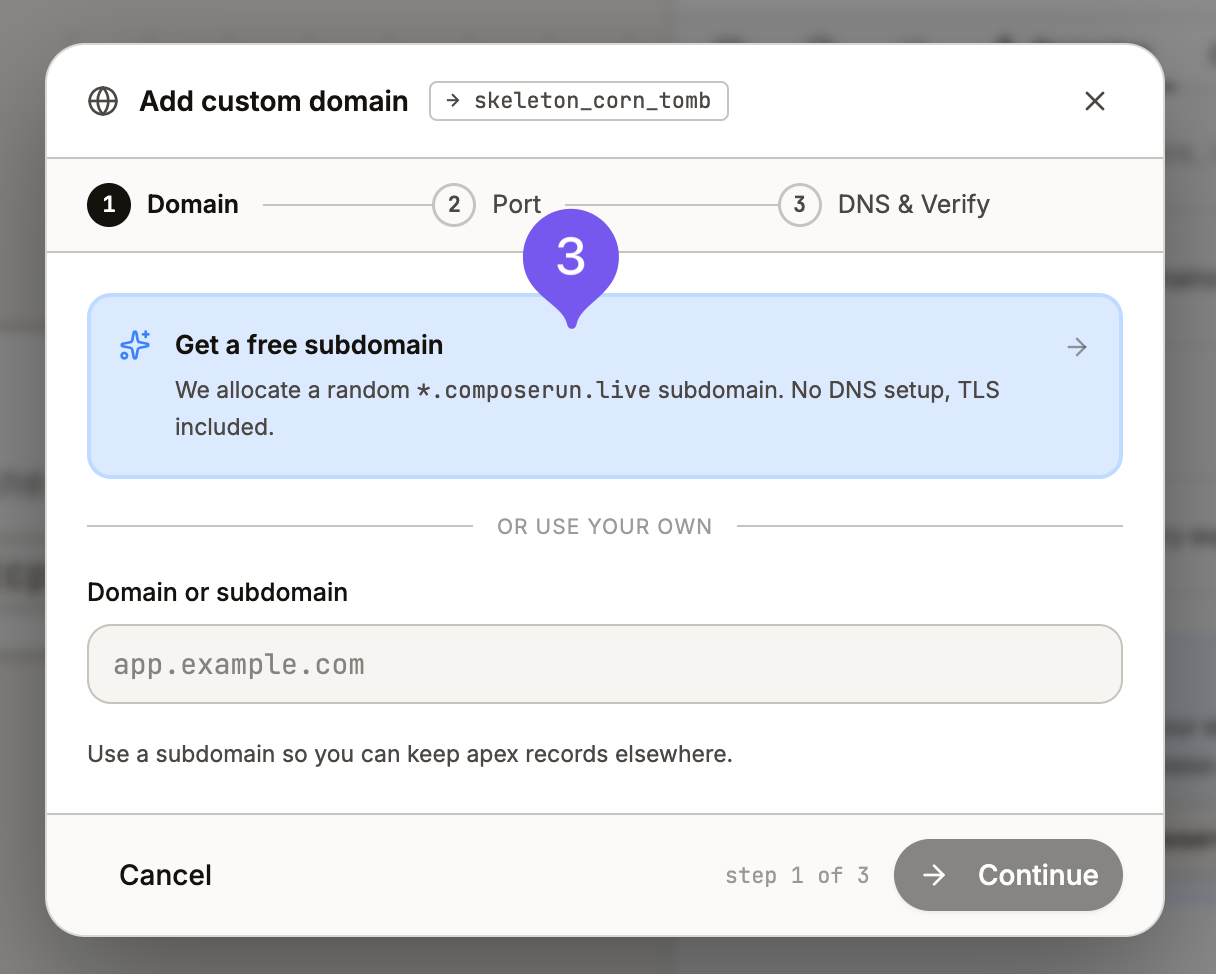
Follow the wizard by clicking the "Get a free subdomain" button (3). On the next step, select the port you want to deploy and continue to the last step.
The last screen shows you live progress.
- The backend checks that the DNS record resolves to the compose_run load balancer
- The domain is allocated on our infrastructure
- A TLS certificate is provisioned
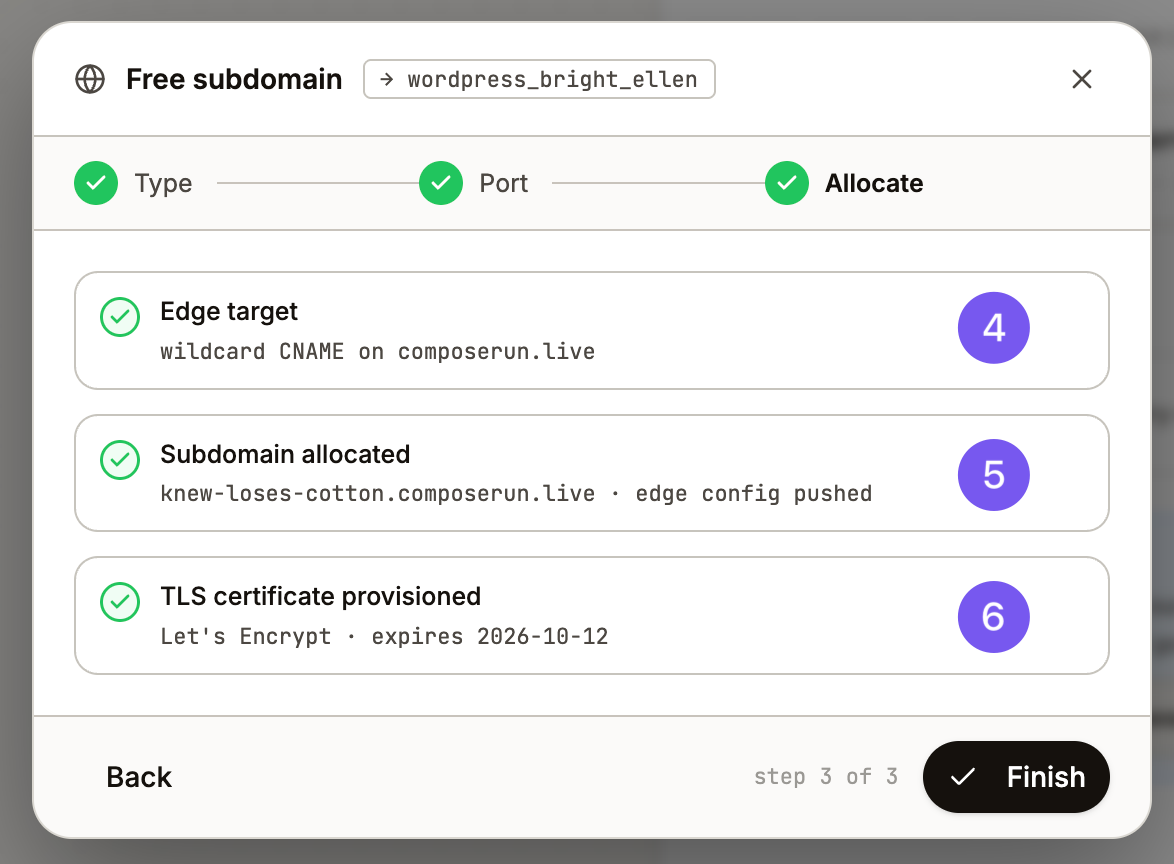
Once it's done, hit "Finish" and see your stack live on the web!
Deploy the expose as a raw TCP port
Sometimes you don't want to expose a port through a web proxy, but as a raw TCP port instead.
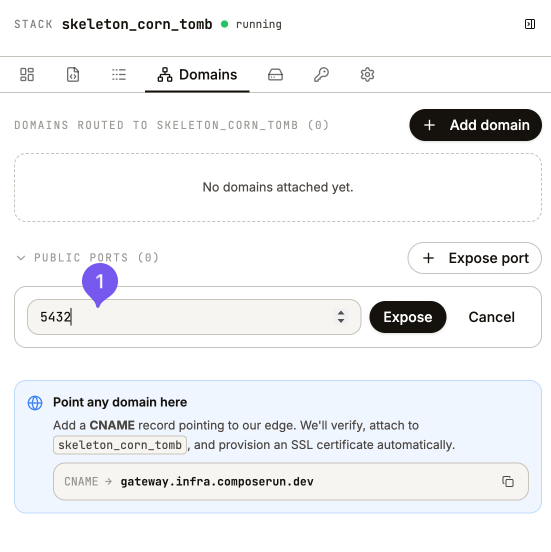
To do so, enter the port you want to expose in the public port input (1).
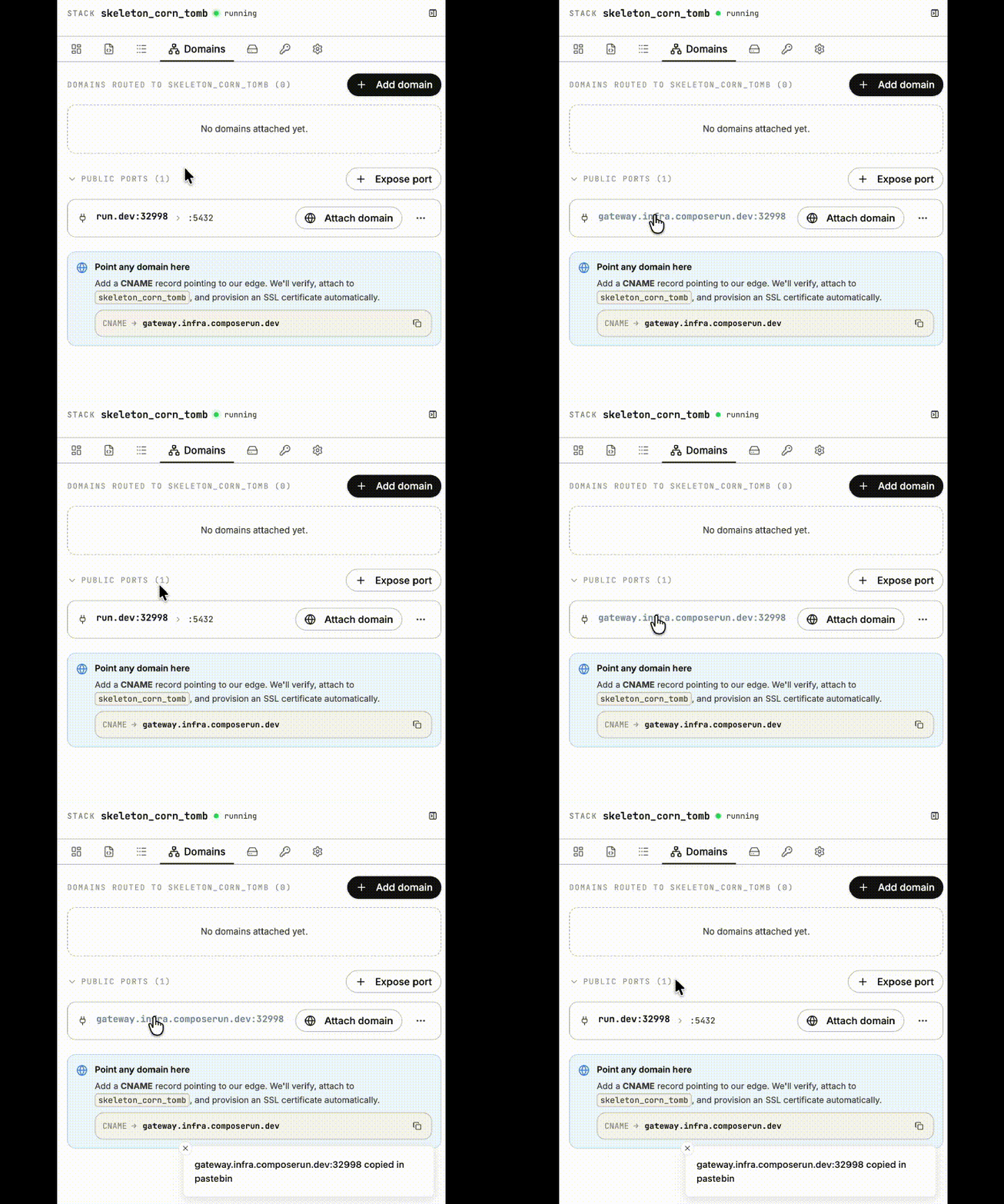
You can then copy the assigned public port by hovering over the expose with your mouse.
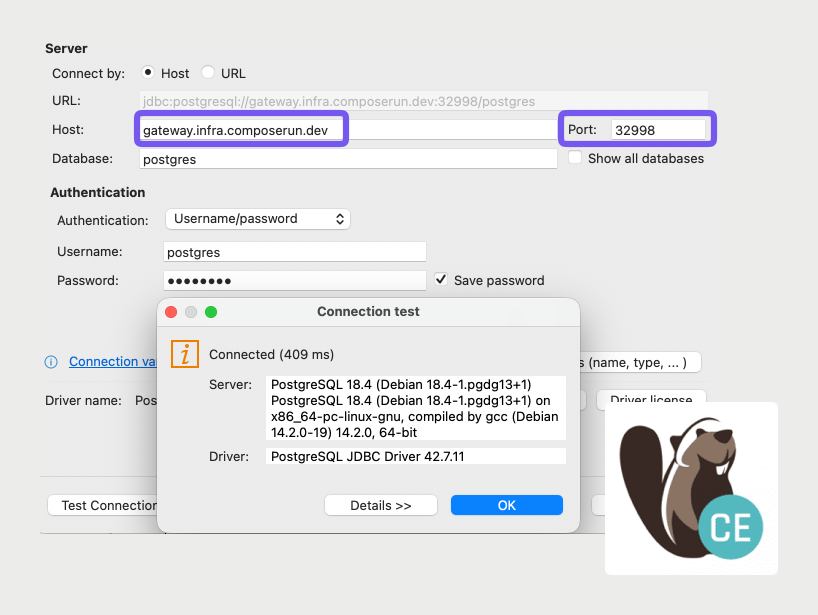
The port is now exposed. In the example below, we connect to the PostgreSQL port 5432 through the assigned public port 32998, on the hostname gateway.infra.composerun.dev.